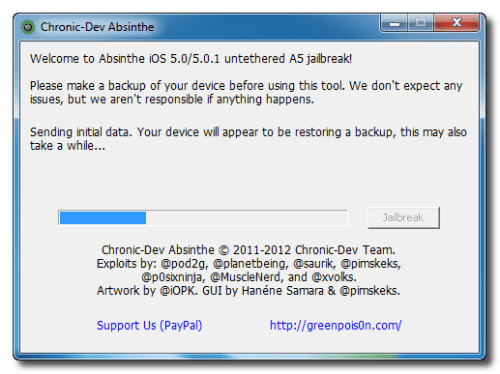
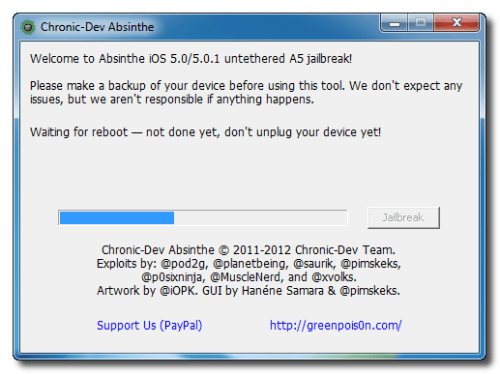
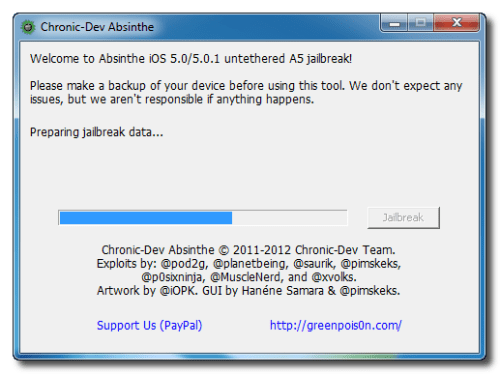
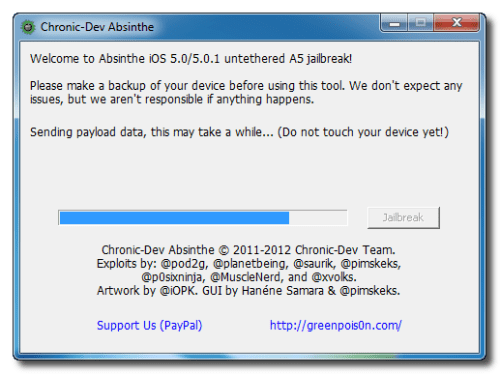
These are instructions on how to perform an untethered jailbreak of your iPhone 4S using Absinthe for Windows.

Warning***: Before you continue make sure to do a backup of your device in iTunes as you may lose your Camera Roll during this process.

Step One
Download the latest version of Absinthe as below link:

- Absinthe 0.3 (Win) [info]: absinthe-win-0.3.zip
- Absinthe 0.3 (Mac) [info]: absinthe-mac-0.3.zip
- Absinthe 0.3 (Linux) [info]: absinthe-linux-0.3.tar.gz

Step Two
Double click to extract the downloaded archive and launch the Absinthe application.

Step Three
As prompted, connect your iPhone 4S to the computer via USB. Make sure to remove any passcodes or VPN settings you've previously set.
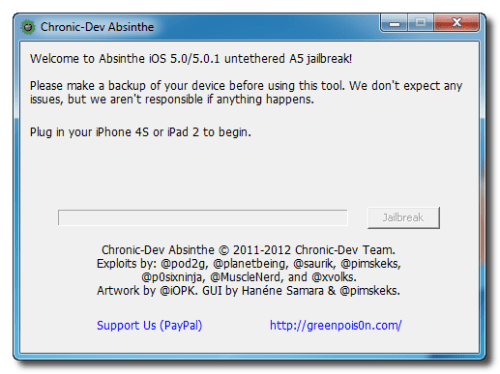
Step Four
Click the Jailbreak button to begin
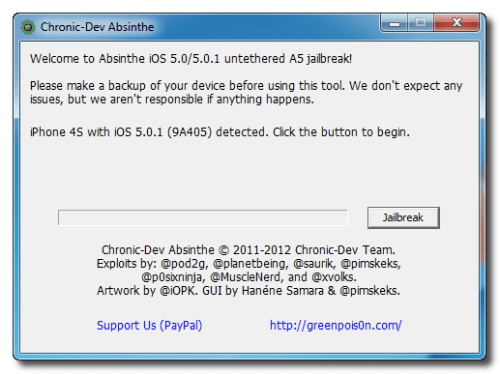
Step Five
The application will take you through several steps of the jailbreak: Sending initial data, waiting for reboot, waiting for device to finish booting, Preparing jailbreak data, and Sending payload data.
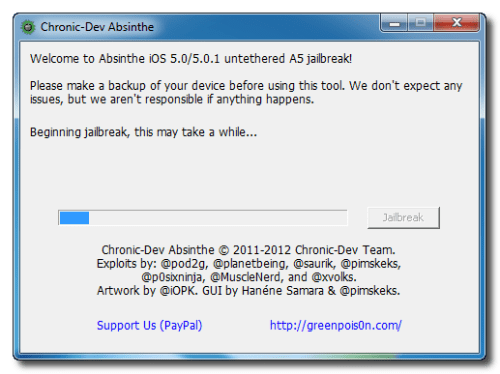


Step Six
You will be informed that the jailbreak is 'Almost done'.
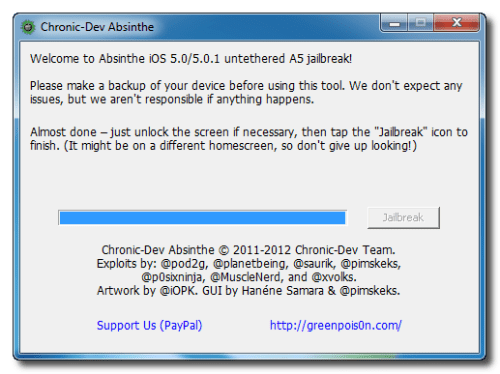
Step Seven
On your device, locate the Absinthe icon and press it to complete your jailbreak. It could be on any homescreen.
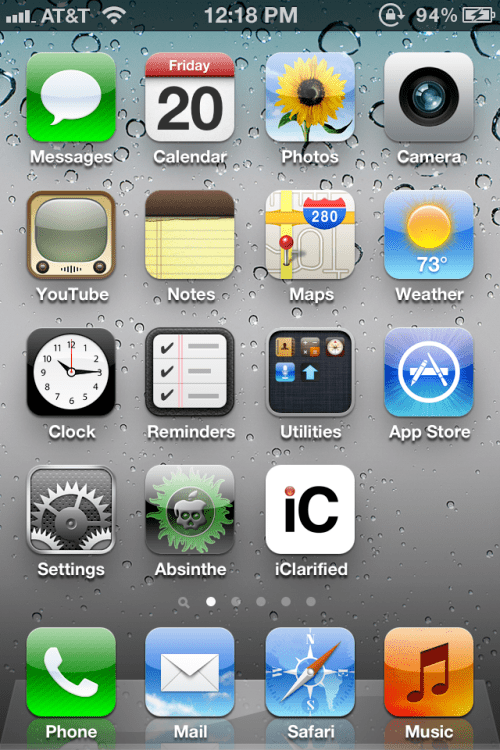
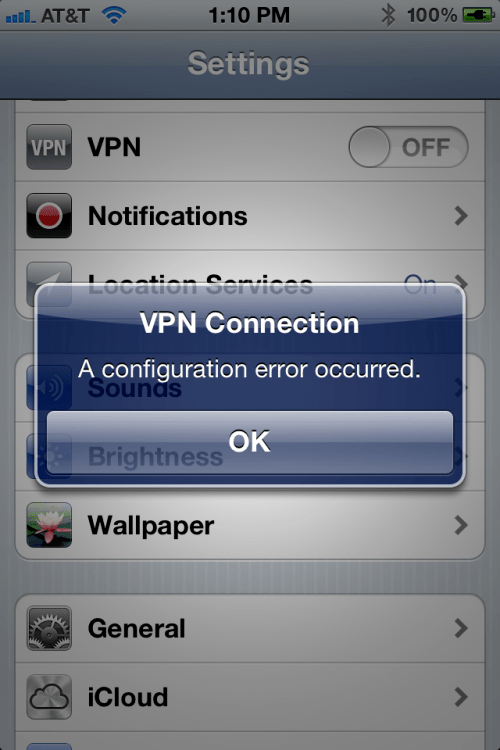
If the server is down and you get an Error establishing a database connection message then tap the Settings icon on your springboard and turn on VPN.
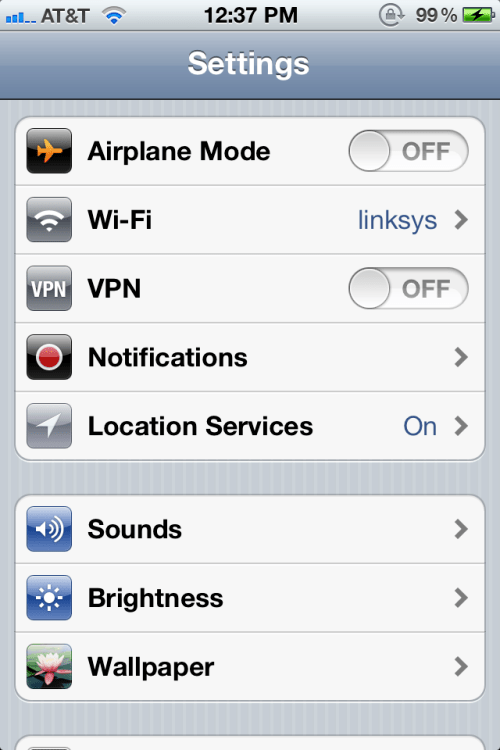
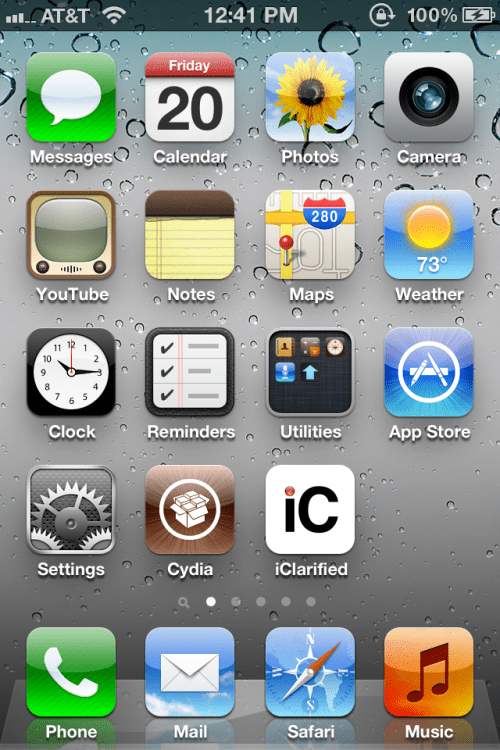
You will get a configuration error; however, after about a minute your device will reboot with Cydia on the Springboard!
Read more >>

If you are going to change your iPhone or just want to take backup of your iPhone contacts, here is a simple way to export your iPhone contacts as csv file in Windows 7 and you can open this csv file in Excel. You just need your iPhone and iTunes running in Windows7. Windows XP users here.

Export iPhone contact as CSV file or to Excel

Download and install iTunes, after installation Run iTunes.

Connect your iPhone with computer using data cable.

On the safe side backup your device first, Right-click on your device and select “Back Up” (in-case of any problem with iPhone Contacts you can restore your device later).

Connected iPhone device

When iTunes finish the back up process, Click on “Info” tab

iTunes info tab

Click on “Sync Contacts with” check box, select “Windows Contacts” from drop down menu and click “Apply” or “Sync” button

sync contacts with windows

Press “Windows + R” keys form keyboard to open “Run” window and type “wab” in “Open” filed and hit OK

type wab command in run

Click on tiny arrow and select “Export” as shown below

all contacts

Select “CSV (Comma Separated Values)” option and click “Export” button

export csv

Click on “Browse” button, choose location to save iPhone contacts as csv file

csv export

Select iPhone contacts fields that you want to export and hit “Finish” button

Field to export in csv

You will see this message if iPhone contacts exported as csv file successfully, hit “OK” button.

Windows Contacts

Now you can use this csv file to import iPhone contacts in any other application or device or you can open this file in Excel to view all iPhone contacts.

Read more >>

Now lets see how we can export iPhone contact in Windows XP as CSV file and you can open this csv file in Excel or you can import this iPhone contacts file in any other email application or mobile device. For Windows 7 users here.

Export iPhone contact as CSV file in Windows XP

Download and install iTunes, install and Run it

Connect your iPhone with computer using data cable, Click on iPhone device under “Devices” section in iTunes

Connected iPhone device

Click on “Info” tab

iTunes info tab

Click on “Sync Contacts with” check box, select “Windows Contacts” from drop down menu and click “Apply” or “Sync” button. Now you can close the iTunes.

sync contacts with windows

Open “Run” windows by Pressing “Windows + R” keys form keyboard and type “wab” command in “Open” filed and hit OK

Run "wab" command

This will open up “Address Book” application.

Click on “File” menu > “Export” > “Other Address Book”.

Export csv file

Select “Text File (Comma Separated Values)” option and hit “Export” button

File to export as

Choose a location to save CSV file and hit “Next” button

Save csv file

Select contact fields that you want to export and hit “Finish” button

CSV fields to export

You will see this message if iPhone contacts saved successfully as CSV file.

iPhone Contacts saved

Read more >>

Pod2g's untethered iOS 5.0.1 jailbreak for the iPhone 4, iPhone 3GS, iPod Touch 3G, iPod Touch 4G, and iPad 1, has been released, according the iPhone Dev-Team.

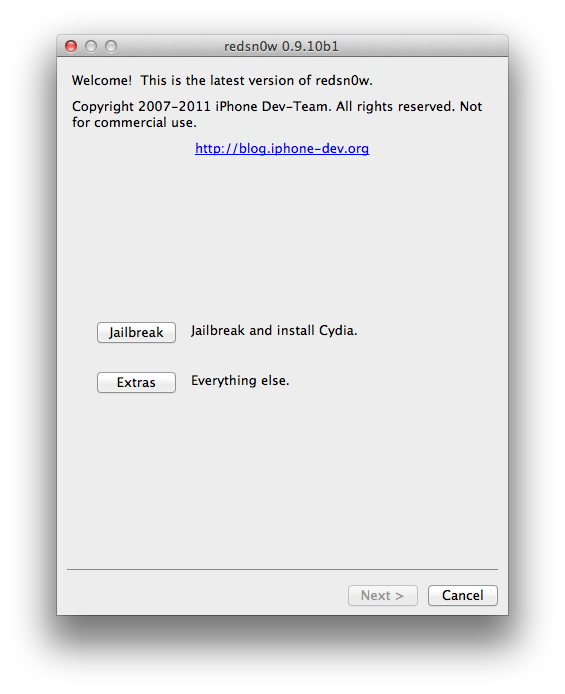
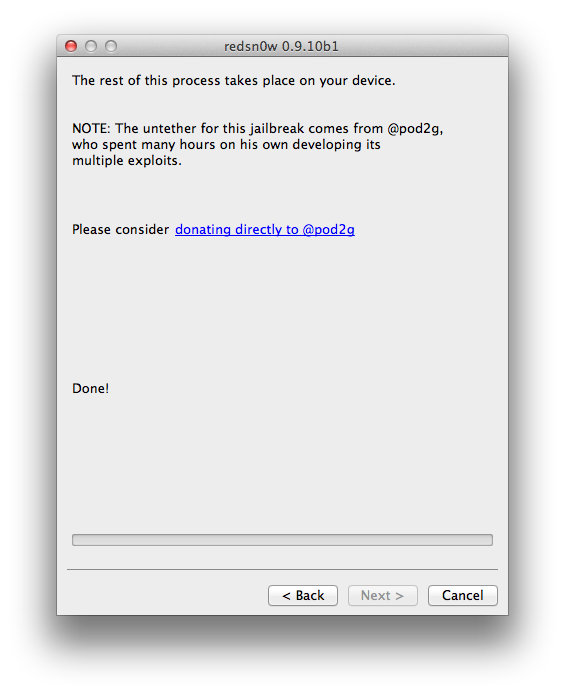
A few days ago, @pod2g gave the untether to both the iPhone devteam and the chronic devteam. We've put it into redsn0w 0.9.10 and PwnageTool, and the chronic devteam put it into a Cydia package (the same set of exploits is in all three).

Basics:
● The untether is for iOS 5.0.1 on iPhone3GS, iPhone4, iPhone4-CDMA, iPad1, iPod touch 3G, iPod touch 4G
● If you have one of those devices and are not on 5.0.1 yet, update now! The SHSH window is still open for 5.0.1 If you unlock via ultrasn0w or gevey, make sure you only get to 5.0.1 via a custom IPSW! See the guides at places like iClarified.com if you don't know how. Once you're at 5.0.1, use the latest redsn0w 0.9.10 to both jailbreak and untether.
● If you're already at 5.0.1 with a tethered jailbreak, you have two choices: either run redsn0w 0.9.10 over your current jailbreak (deselect "Install Cydia" if you do that), or install the Cydia package prepared by the chronic devteam. The patches are the same regardless of which you choose.
● Some of you are using a hybrid 5.0/5.0.1 configuration. If so, do not attempt to install this untether over that setup! You will most likely get into a reboot cycle. Do a sync and fresh restore to 5.0.1 then install the jailbreak + untether.

You can download the new release of RedSn0w Windows from here and Mac here. We'll be posting instructions on how to perform the untethered jailbreak below.

*Don't forget to give pod2g and the Dev-Teams a big thank you!
** We'd also appreciate if those who speak different languages could submit translations to help those who have difficulty with English.

Read More


Read more >>

Apple News

Chpwn has just released Zephyr, a new tweak that brings awesome multitasking gestures to the iPhone and iPod Touch. With just one finger, you can swipe up anywhere on the iPhone to bring up the multitasking switcher, or swipe left/right to switch to a different app.

Zephyr is multitasking gestures for iPhone and iPod touch. From swiping up to show the multitasking switcher or quickly swiping to a different app, Zephyr is all you need to quickly and easily control multitasking.

Zephyr is available in the Cydia Store for $2.99.

Read more >>

The iPad is wonderful and all that, but it is not without its flaws and weaknesses many of which I expect Apple will address with the next incarnation of the tablet device. However, for those looking to use the current generation iPad as a mobile business tool, Microsoft may be the hero with Docs.

Microsoft and Apple are the developers of three of the most popular operating systems in the world (Windows, iOS & Mac OS X) powering their powers laptops, tablets and phones.
of course nothing of the various iWork for iPad apps can be compared to the real office productivity software like the Microsoft Office 2010, and then the question is why I even have an iPad then. Why not simply use the more robust, more functional, more capable Windows 7 notebook, and stick with Office 2010? the answer of course will be  The iPad weighs about a third of what my notebook weighs, is only about a quarter of the thickness, has four to five times the battery life.

The good news is that according to sources Microsoft is now working on an Apple’s tablet version of their popular Microsoft Office software suite,and maybe in a few days we will use that app.

That means there will be a armistice between the 2 tech against Apple and Microsoft ,and maybe we will see duplicate masterpieces tablets in the future.

image

[via Geohot]

Read more >>

UltraSn0w Unlock Updated to Support iOS 5.0.1

Apple News

The iPhone Dev-Team has released UltraSn0w 1.25 which brings iOS 5.0.1 support to the unlock for older basebands.

iPhone Dev Team's iPhone 4, 3G, and 3GS software unlock, now with added PwnApple. Compatible with iPhone 4 baseband 01.59.00 and iPhone 3G/3GS basebands 04.26.08, 05.11.07, 05.12.01, 05.13.04 and 06.15.00! Thanks to @sherif_hashim and @Oranav for contributing baseband crashes.

UltraSn0w 1.2.5 is now available in Cydia. You can find instructions on how to install the unlock here.

If you are on one of the supported basebands and wish to update to iOS 5.0.1 you will need to do so with a custom ipsw that doesn't update your baseband. You can find instructions on how to do that here.

image

Read more >>

Siri plays the piano using AirPlay [Video]

Apple News

We’ve all seen some cool things that Siri can do, but this has to be the best so far. The guys at Yamaha got Siri to play piano.

Here’s an explained how it works:

Take a standard MIDI songfile and convert it to an audio file (while maintaining the MIDI data). The songfile is then sent wirelessly via WiFi to an Apple Airport Express (which is mounted underneath a Yamaha Disklavier reproducing piano. The audio output of the Airport Express is then connected to the analog MIDI inputs of the Disklavier, using a standard audio cable.

Then, you simply ask Siri to play your favorite song from your iTunes library, and Siri responds immediately, by making the Disklavier’s keys and pedal move up and down, recreating the performance, including full orchestration.

Take a look below...

[via Loop]

Read more >>

Apple Tutorials

These are instructions on how to make Siri speak selected text on your iPhone 4S.

Step One
Press to select Settings from your Springboard.

Step Two
Press to choose General from the Settings menu.

Step Three
Select Accessibility from the Settings menu.

Step Four
Tap Speak Selection from the Accessibility menu.

Step Five
Make sure the Speak Selection switch is turned ON. You can also adjust Siri's speaking rate using the slider.

Step Six
Press the Home button to return to your Springboard and launch an app such as Safari.

Step Seven
Use your finger to select and portion of text then click the Speak button the pops up to read it aloud. You can press the Pause button to stop reading.

[via iclarified]

Read more >>